Editor mode
When you start a new career, you can activate the Editor mode, which allows you to modify player and tournament information directly from the game. These changes will only apply to that career.

Edit player
Click on the menu in the bottom-left corner of the banner—which is available to all players—and then click “Edit.”
- first and last name
- photo
- attributes
- equipment

Edit tournament
On each tournament table, activate editing using the switch at the top right. You can then change
- the name
- the logo
Customization
You can simply import files from your computer and have a career that's just like you!

Import your Manager photo
When creating a new career, you can import a photo of your choice from your computer. Use the "Import" button to fetch your file.
The file must be in png format. For best results in-game, make sure the format is roughly square.

Import your Academy logo
If you choose to create your own Academy, you can import a logo of your choice from your computer. Use the "Import" button to fetch your file.
The file must be in png format. For best results in-game, make sure the format is roughly square.
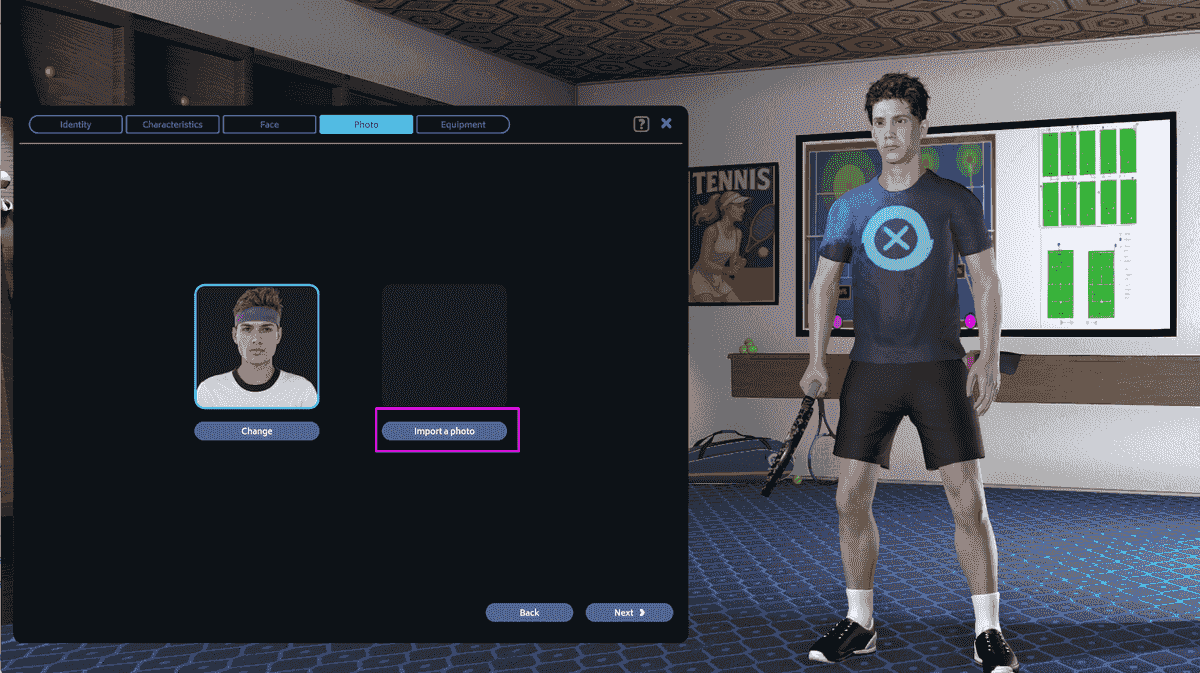
Import a photo when creating a player
If you choose to create a Player, you can import a photo of your choice from your computer. Use the "Import" button to fetch your file.
The file must be in png format. For best results in-game, make sure the format is roughly square.
FOLLOW US

DISCORD

TWITTER

FACEBOOK

INSTAGRAM

YOUTUBE

TWITCH